
"I Just Saved My Changes... So Where Are They?"
You've just spent time perfecting your flipbook. You've added a new video, re-ordered the pages, and clicked "Save." You excitedly open the viewer link to admire your work, but... it looks exactly the same as before. The old version is taunting you, seemingly stuck in time.
Sound familiar? Don't worry, you're not going crazy, and your changes have been saved! What you're experiencing is a classic case of an over-eager web browser trying to be a little too helpful.
Meet the Browser Cache: Your Speedy, Forgetful Friend
To make your internet experience faster, your web browser (like Chrome, Firefox, or Safari) keeps a local copy of websites you visit. This is called a cache. When you revisit a page, instead of downloading everything again, your browser often just shows you the version it has stored in its memory. This is usually a brilliant time-saver.
However, sometimes the browser is so keen to be fast that it doesn't realize a newer version of your flipbook is available on our server. It keeps showing you the old, cached copy out of habit.
The solution? We need to politely but firmly tell your browser: "Forget what you think you know. Go and get the absolute latest version right now." This is called a Hard Refresh.
The Magic Trick: How to Do a Hard Refresh
A hard refresh forces your browser to bypass its local cache and download a fresh copy of everything on the page. It's a simple keyboard shortcut that every web user should know. Here’s how to do it on your desktop computer:
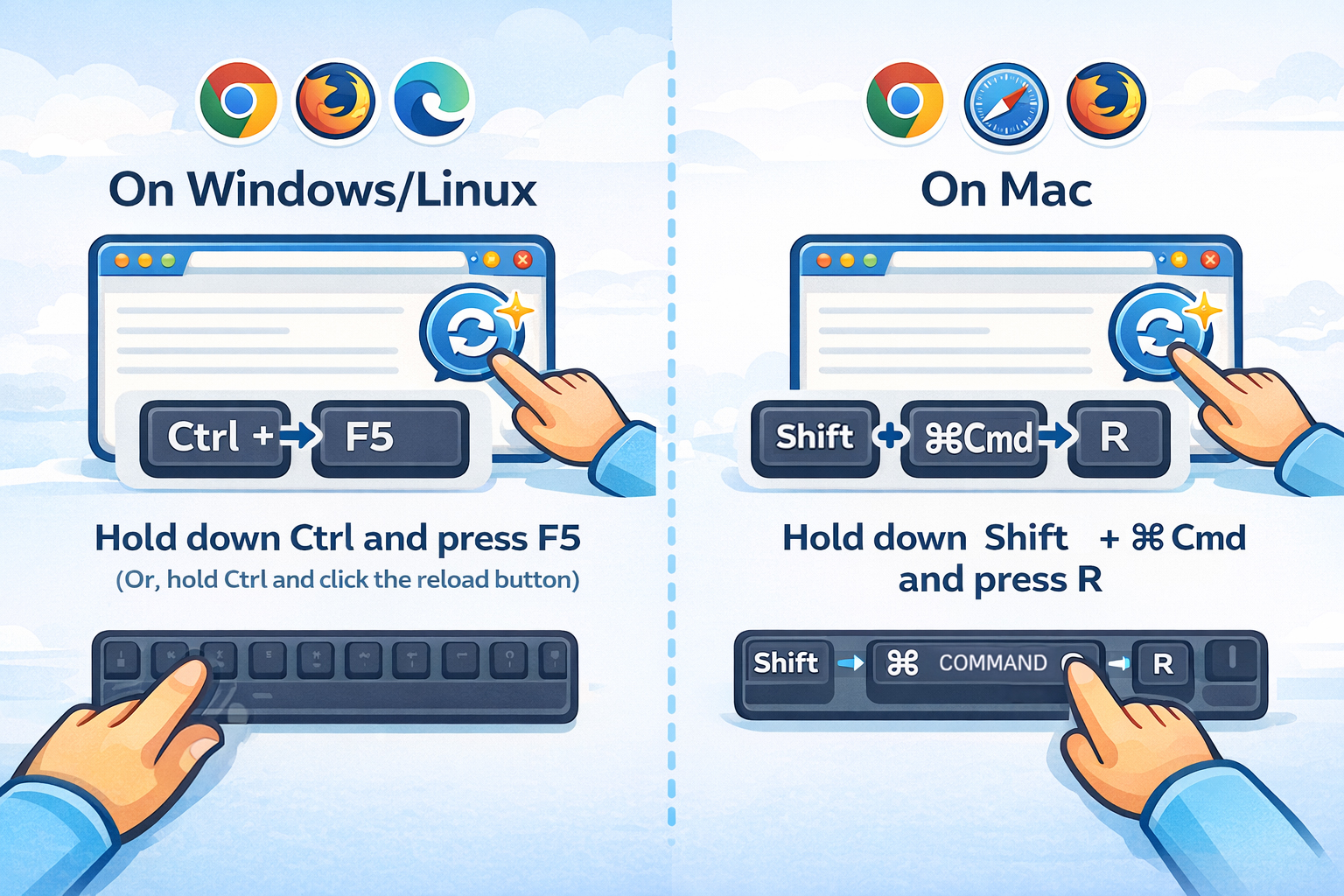
- On Windows/Linux (in Chrome, Firefox, Edge): Hold down Ctrl and press F5. (Or, hold `Ctrl` and click the reload button).
- On Mac (in Chrome, Safari, Firefox): Hold down Cmd ⌘ + Shift and press R.
That's it! The page will reload, and your latest, most brilliant changes will appear. Think of it as the ultimate "have you tried turning it off and on again?" for your browser.
Pro Tip for Editors
We know this is important, so we've built a solution right into the Fflipp editor. The "Live Preview" button automatically adds a unique timestamp to the URL. This is a strong signal to your browser to fetch the latest version. In most cases, this is all you need!
However, if you find that a change still isn't appearing, the manual hard refresh (Ctrl+F5 or Cmd+Shift+R) is the ultimate override that will always work.
What About on a Mobile Device?
Mobile browsers don't have a simple hard refresh shortcut, and their caches can be particularly stubborn. If you've just edited your flipbook on a desktop and want to immediately check the latest version on your phone, you have two great options:
- The "Private Browser" Trick: The easiest method is to open a Private or Incognito tab in your phone's browser. Since private tabs have no cache, they are forced to download a fresh copy of your flipbook every time.
- The "Add a Number" Trick: You can also manually add a random parameter to the end of your flipbook's URL. Simply add something like ?v=123 to the end. The browser will see this as a brand new page and will be forced to load it from scratch.
When in Doubt, Hard Refresh!
So next time you save an update and don't see it, don't panic. Your work is safe. Just give your browser a firm but friendly hard refresh, and your latest masterpiece will appear. It's the secret handshake between you and the web to make sure you're always on the same page—literally!

Comments & Questions
Log in to join the conversation.